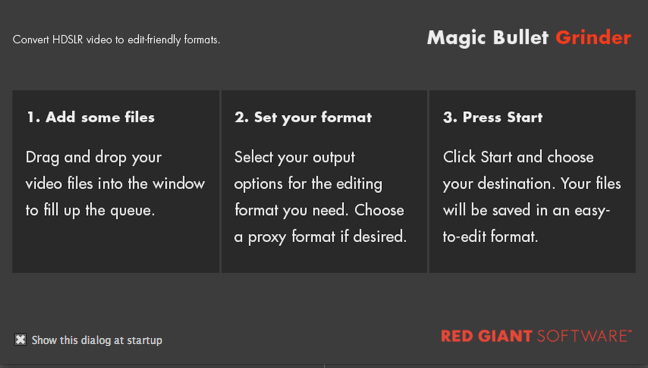
Grinder Help Window
The Magic Bullet Grinder interface is very simple to use. When you first launch Grinder, you will see a Help Window which explains the simple steps of using Grinder.
Click anywhere in the Help Window to close the window. You can turn off this window by unchecking 'Show this dialog at startup.'
Simple steps in the Grinder process
Add some files: Drag and drop your video files into the window to fill up the queue. Go to Step 1.
Set batch options: Select batch process options for timecode, frame rate, render priority and naming conventions. Go to Step 2.
Set main file options: Choose the transcode format, file resolution and render location of the main file output. Go to Step 3.
Set proxy file options: Choose the transcode format, file resolution, burn-in data and render location of the proxy file output. Go to Step 4.
Press Start: Click the Start button. Your files will be saved in an easy-to-edit format. Go to Step 5.