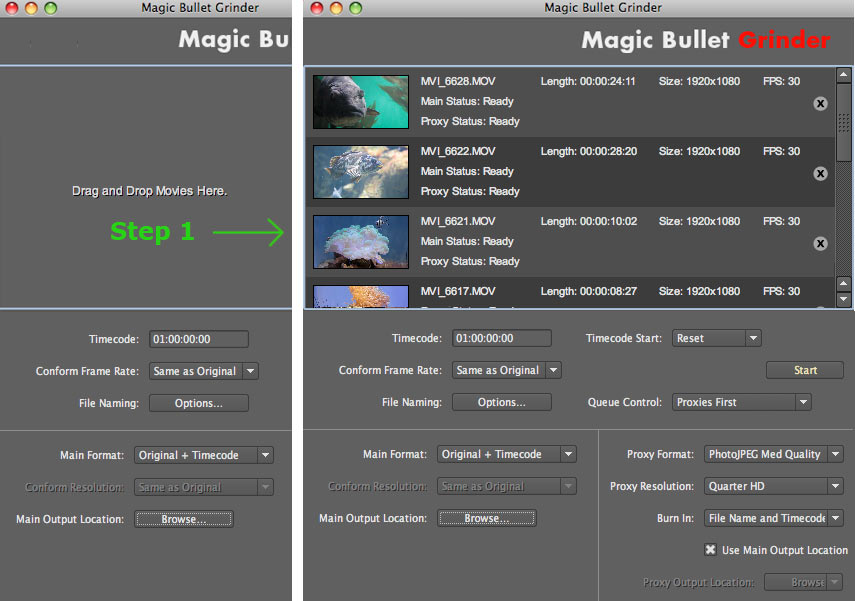
Step 1: Add batch files
Drag and drop your video files into the Batch Queue to load them into Grinder. Alternately, you can use the File> Add Files... menu option.
The Start button will begin processing the queued files. Before you do that, you need to choose your format and output options. Go to Step 2: Set batch options.
Files are dragged into the Grinder queue.
Managing files in Batch Queue
Once your files are added to Grinder, their information displays in the Batch Queue. This window shows the queue of files in alternately shaded rows.
The batch list supports up to 500 files. Files that match Canon HD file standards (1080p or 720p, and H.264 codec) will be marked 'Ready'. If you drop in a file that doesn't match Canon HD file standards, a dialog box will tell you the file is not supported, and it will not load into the queue.
To delete a file from the Batch Queue, click the Delete button in its row. A dialog box will confirm that you want to remove the item.
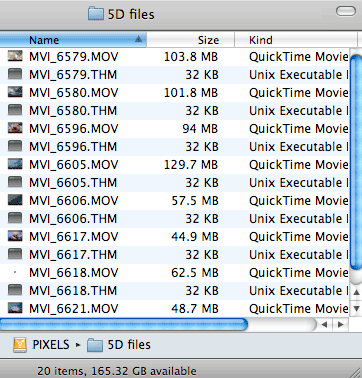

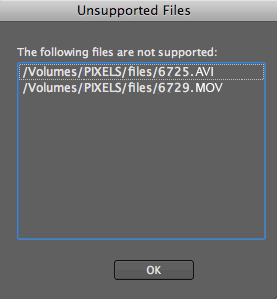
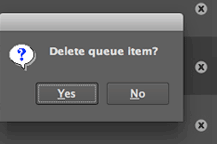
Left to right, a folder of supported Canon HD files, the Unsupported Files dialog, and the Delete function.