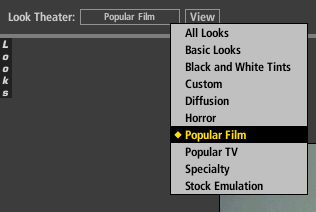
LooksBuilder: Look Theater
The Looks Theater creates a slide show that previews different Look presets on your image. You can choose to view all Looks in the library or preview individual Look categories.
Look Theater Categories

The button next to the Look Theater label controls what Looks show in the View slide show. Click to toggle between these Looks categories: All Looks, Basic, Black and White Tints, Diffusion, Horror, Music Videos, Popular Film, Popular TV, Special Effects, Stock Emulation and Tints.
'All Looks' indicates that Quick Looks will scroll through all presets, in all 10 categories, in order of appearance. See the 10 Look Categories and all of their presets on the Looks Library page.
Look Theater View

Click the View button to start the theater presentation. This lets you view each available Look for a few seconds at a time as a slide show.
Click the View button while the slide show is running to stop the slide show, with no Look chosen. Click a preset while the slide show is running to load up that preset. To keep that preset selected, you must cancel the slide show by clicking View button; otherwise, the slide show will continue from where it left off. End the theater presentation by clicking the View button again.
Commands to operate the Theater
Click the Spacebar key to pause and resume the slide show. Use the left and right Arrow keys to move forward and back through the Looks manually. Hit Enter to apply the current Look.
Timing controls can be changed by altering the Looks Theater values in the Preferences. Set how many seconds each Look stays onscreen with the Hold Time preference. You can also set the transition (or fade) time with the Transition Time preference.