
LooksBuilder: Menu items
You can use PhotoLooks as a stand-alone application or as a plug-in through Photoshop and Aperture. Either way, when the LooksBuilder interface opens, it brings along its own menu bar.
The commands are similar between Macintosh and Windows systems, but they are spread out in different areas. On Macs, there are four drop-down menus: LooksBuilder, File, Edit and Window. On Windows, there are three drop-downs: File, Edit and Help. Let's look at what each menu contains.
LooksBuilder menu (Mac only)
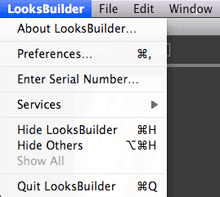
On Mac systems, the LooksBuilder menu contains global operations. These options include the About panel, entering your serial number, accessing the Preference Panel, and quitting out of LooksBuilder.
File menu
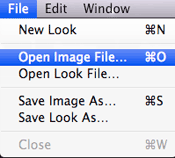
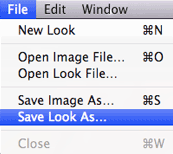
The File menu appears on Mac and Windows. This is where you choose basic functions like opening an image file, saving the image you've been working with, and saving or opening a Look color preset.
On Windows, the global functions are also present. These functions include entering your serial number, accessing the Preference Panel, and quitting out of LooksBuilder.
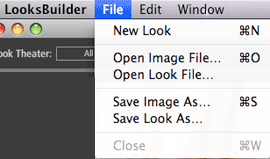
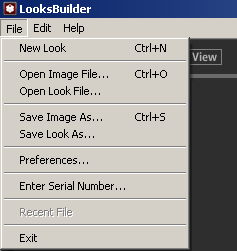
An important command in the File menu is Open Image File..., which opens a graphic or photograph for you to work with. Another great menu item is Save Look As..., which lets you save a preset of the color design you have created.
Edit menu
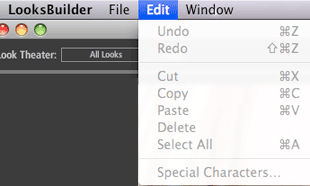
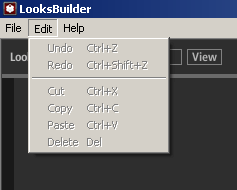
The Edit menu appears on Mac and Windows and is similar on both systems. You will find standard operations like Undo, Redo, Cut, Copy, Paste and Delete.
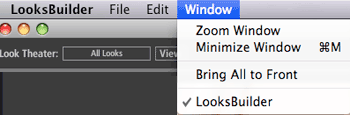
Window menu (Mac only)
On Mac systems, the Window menu gives a few OS-level options like Zooming in/out of the LooksBuilder interface.
Help menu (Windows only)
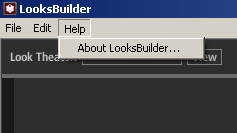
On Windows systems, the Help menu lets you access the About panel.