LooksBuilder: Preview Area
The Preview Area of LooksBuilder shows the current image that you have imported. This image could be be chosen in the host application (like Photoshop) before you apply PhotoLooks. Alternately, the image could be loaded from the File> Open Image File... menu command once LooksBuilder is already open.
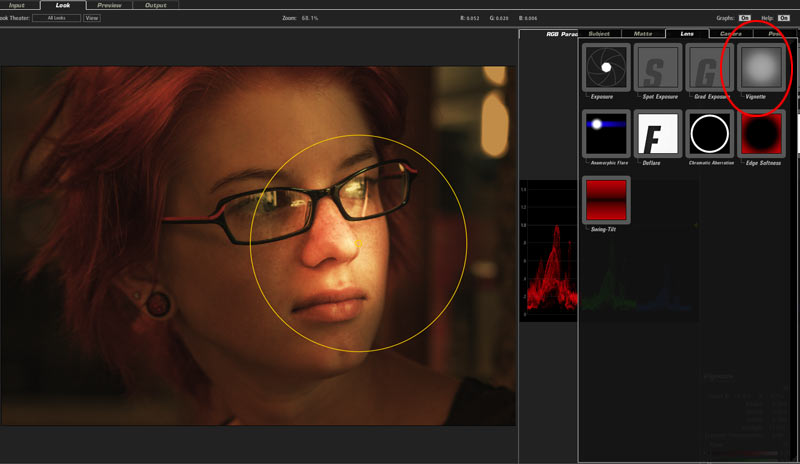
To zoom out of the image, scrolli down using a mouse with a scroll wheel, or press the Comma (,) key. To zoom in, scroll up or press the Period (.) key. The Preview Area will change based on the Look that is loaded in the Tool Chain. The Preview will also show a yellow circular overlay for some tools.
Overlays in Preview Area
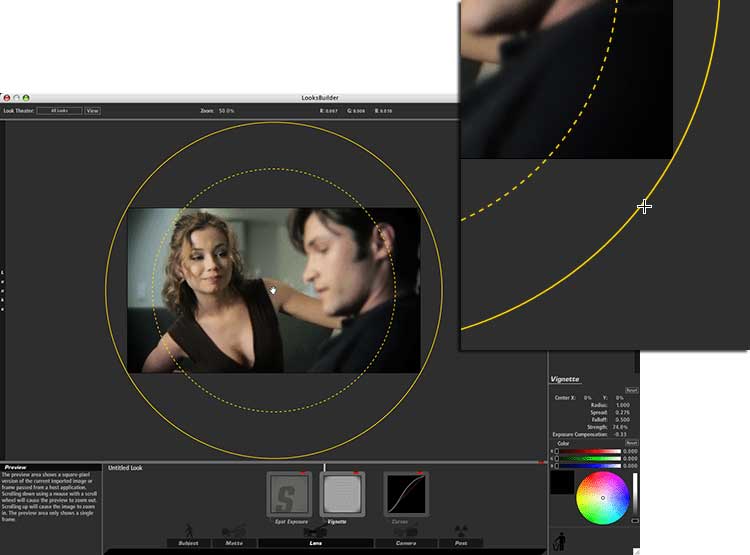
A number of LooksBuilder tools have onscreen controls that appear in the Preview Area to allow you to alter the tool controls visually. The controls are shown as an overlay of three yellow concentric circles.
The overlay will fade out after approximately four seconds. The fade-out is meant to temporarily hide the cursor if you move your mouse outside the Preview Area. Doing so lets you evaluate the Look color design without the distraction of the yellow overlay lines.
When will you see this overlay? Some tools have spot controls for isolating an area of your image that will be affected. These tools include Vignette, Edge Focus and Spot Focus. Below is a shot of the Vignette tool. Here is what you are looking at:
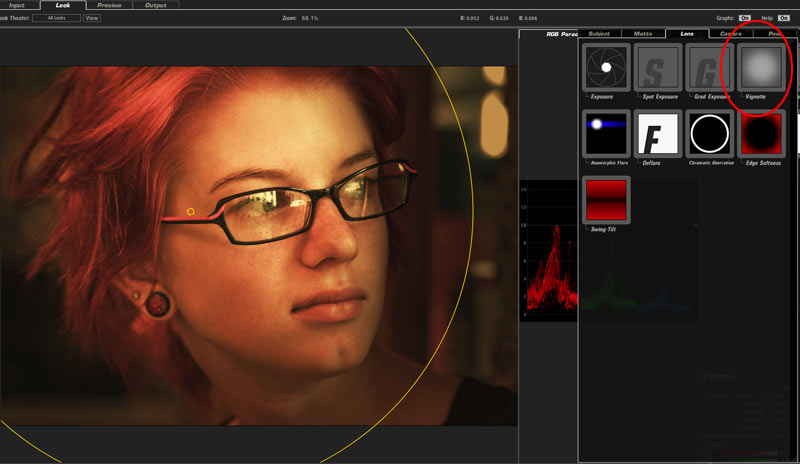
Above and below, the Vignette tool isolates different parts of an image when you drag the yellow overlay circles.