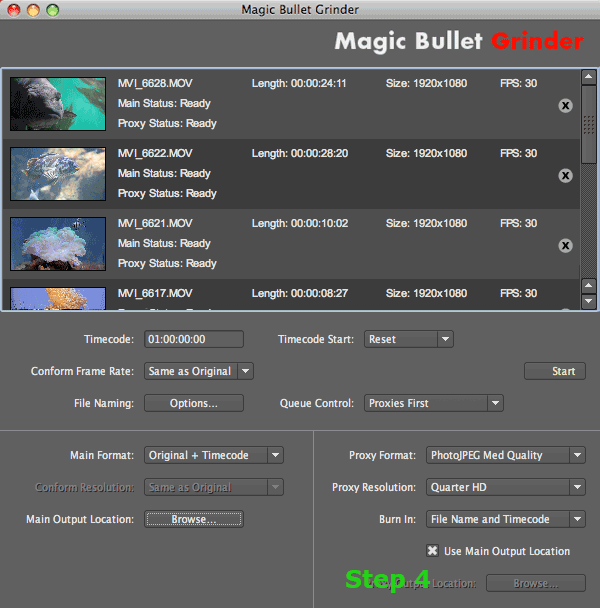
Step 4: Set proxy file options
In the Proxy Options area, choose the transcode format, file resolution, burn-in data and render location of the proxy file output.
Once you have decided the proxy options, go to Step 5: Start batch process.
Proxy Format pop-up
Saves a proxy file along with the main output. A 'proxy' is a version of the file that is smaller in size and/or uses a different codec with higher compression. The proxy file is smaller than its main counterpart and this is beneficial for many reasons. Proxies are easier to email, more files can fit onto a storage drive, and they are faster to edit for a rough cut.
AUDIO NOTE: Audio quality can be set low for proxy files. We suggest AAC at 128Kbps for PhotoJPEG format files and Interleaved DV Audio for the DV NTSC setting.
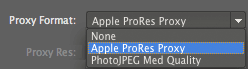
• None. Tells Grinder not to save a proxy file. When None is selected, all other proxy options are unavailable.
• PhotoJPEG Med Quality. The default setting. Proxy is saved at 65% Quality setting.
• ProRes Proxy (45 Mbit format). This format is only available if Final Cut Pro 7 is installed.
Proxy Resolution pop-up
The output resolution for Proxy Format is available at five different resolutions. NOTE: The Custom Res option from Grinder 1.0 has been removed.
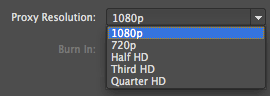
• 1080p. Saves at 1920 x 1080.
• 720p. Saves at 1280 x 720.
• Half HD. Saves at 960 x 540.
• Third HD. Saves at 640 x 360.
• Quarter HD. The default setting. Saves at 480 x 270.
Burn In pop-up
Burn In will add timecode and/or frame numbers to the output of proxy files. Burnt-in timecode is a visible onscreen version of the timecode information that is superimposed on your video image.
By default, proxies have their file name burnt in. This is so you can easily coordinate online and offline media. The file name can be turned off with the None option.
NOTE: Burn In is not an option for the main files, since it is undesirable to view timecode in a final piece.
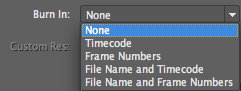
• None. Does not add a timecode/frame burn-in. Also removes the default file name burn-in.
• Timecode. Default setting. Does only a timecode burn-in.
• Frame Numbers. Adds frame number burn-in instead of timecode starting at a fixed value of 1.
• File Name and Timecode. Does burn-in of file name of original media on left and timecode on right.
• File Name and Frame Numbers. Does burn-in of file name of original media on left and frame numbers on right.
Use Main Output Location checkbox
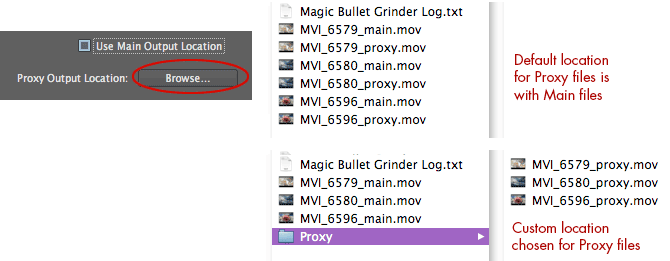
By default, this checkbox is selected. Your proxy files are saved to the same location as the main files, and the Proxy Output Location button is grayed out.
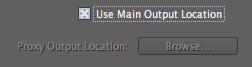
Proxy Output Location button
Manages where your proxy files are saved to. By default, proxies are saved at the same destination as the main folder. This allows you to easily switch between main and proxy files. NOTE: In Grinder 1.0, proxy files defaulted to a 'Proxy' subfolder.
You can choose instead to put proxies into a custom destination. For instance, create a subfolder called 'My Proxies' or choose a different location entirely. You can save the proxy files to a separate disk volume or into a cloud sharing system (like Dropbox) for easy synchronization of media.
To choose a new location, first uncheck Use Main Output Location. Then click the Browse button to choose a new destination folder for the proxy files. Once you select an option, it remains selected until you choose a different location.