
LooksBuilder: Looks QuickDrawer
A 'Look' is a combination of color choices and LooksBuilder tools that combine to create a distinct color appearance. It's a fun and powerful process that starts with the Looks QuickDrawer, which we discuss below.
Activate the Looks Drawer
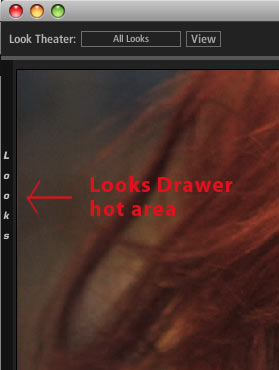
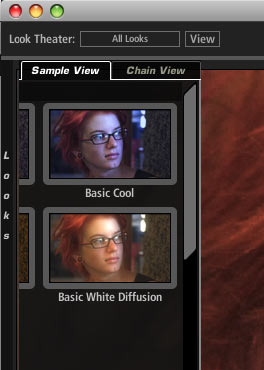
To bring the Looks QuickDrawer into view, just mouse over the vertical hot area that is labeled 'Looks'. This Looks QuickDrawer panel lets you choose a preset from any of 10 or more categories. When you click on a preset in the QuickDrawer, it automatically loads its related tools into the Tool Chain. This allows you to quickly evaluate the Look. As soon as your mouse leaves the QuickDrawer panel, the panel will close and you can edit the Look or apply it to your image.
If you want to see a preview of each Look, check out the Looks Preset gallery.
At left, the Looks Drawer is closed. At right, the QuickDrawer is open.
Two views in Looks QuickDrawer
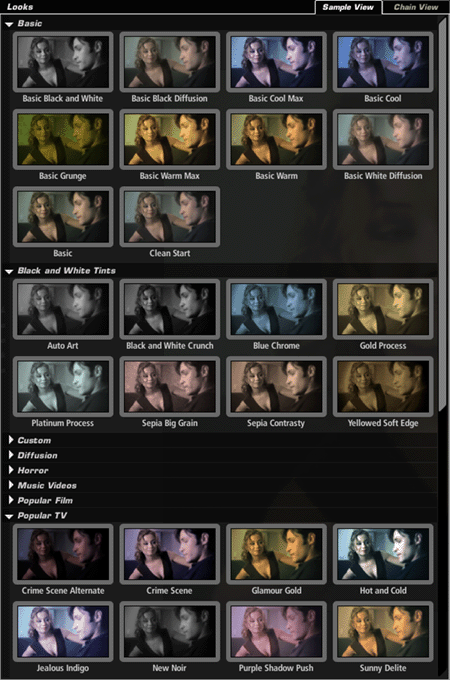
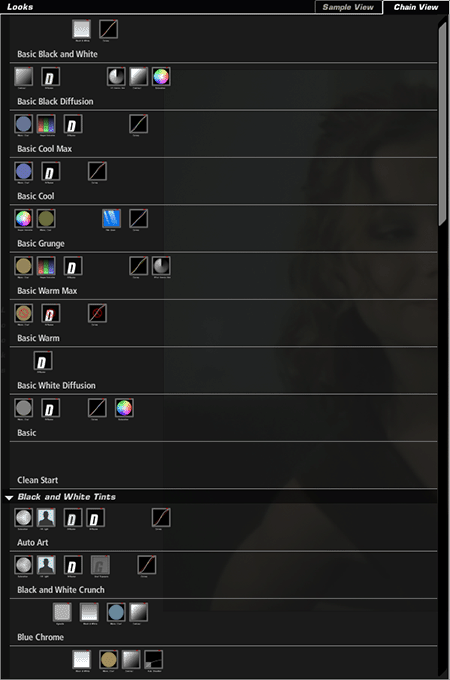
There are two views in the Looks QuickDrawer: Sample View and Chain View.
The Sample View shows the available Looks applied to a sample image with a label under each for the name. The Sample image is either the current image loaded in LooksBuilder or a default image that is shipped with the product. Click on a Look to apply it to your image. You can change this display behavior in Preferences.)
The Chain View displays each available Look as a chain of its individual tool components. Clicking on a Look applies it to your image just as in Sample View. These tools are editable as part of the Tool Chain and the Tool Drawer.