LooksBuilder: Hands-On Mode
The LooksBuilder interface feature a unique interaction mode. This mode lets you edit the numeric values of a tool's controls with the touch of a trackpad, trackball, or mouse. Every control can be customized in this mode, and a unique mapping of the keyboard has been built in to aid in moving between the controls as you edit values.
The best way to explain Hands-On mode is to show an example, so let's get started.
Hands-On Mode with Lift-Gamma-Gain Tool
In our example, we will use the Lift-Gamma Gain tool and the controls it offers to show how Hands-On mode works.
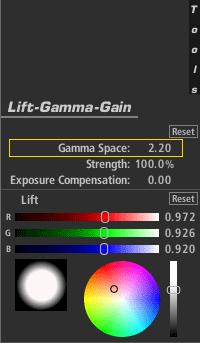
Step 1. With the Tool selected, press tilde ("~" - this key is usually placed next to the "1" key on US/Canadian keyboards)
|
 |
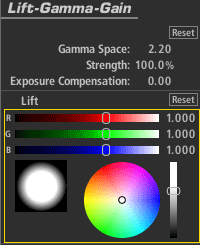
Step 2. Press the down arrow three times to select the Lift controls.
|
|
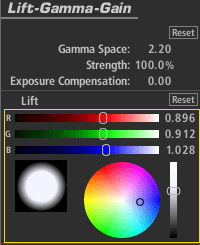
Step 3. Mouse or use a trackpad to push the center dot away from the reds toward blue.
 |
|
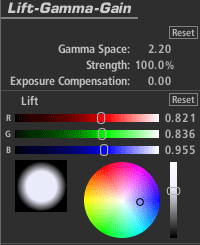
Step 4. With the scroll-wheel, scroll down to change the luminance. Then press Return to exit the mode.
|
Keyboard Shortcuts for Hands-On Mode
The following keyboard controls are used in Hands-On Mode:
- tilde ("~"): Enter hands-on mode
- Esc or Return: Leave hands-on mode and accept changes
- Up arrow: Move to the control above the current one. If at the topmost control, nothing happens.
- Down arrow: Move to the control below the current one. If the control is the last in the list, nothing happens.
- Left arrow: Move to the previous tool in the chain and select the top or last-used control.
- Right arrow: Move to the next tool in the chain and select the top or last-used control.
- Command/Ctrl-Z: Undo the last change (this works without leaving the hands-on mode).
- Command/Ctrl+Shift - Z: Redo the last change (this works with leaving the hands-on mode).