Using PhotoLooks in Lightroom
The PhotoLooks plug-in works the same in Lightroom as it does in Photoshop. The only notable difference is that PhotoLooks can be launched either internal or external to Lightroom. Both methods are accessible through the Lightroom dropdown menu.
Launch PhotoLooks as an internal plug-in
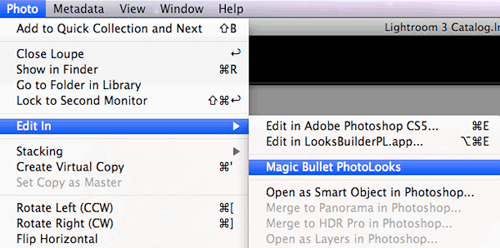
To launch PhotoLooks internally as a Lightroom plug-in, choose the menu item Photo> Edit In> Magic Bullet PhotoLooks. This opens the PhotoLooks interface.
Launch PhotoLooks as an external app
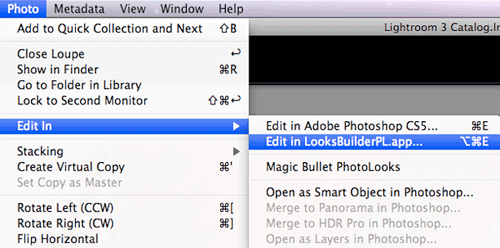
To launch PhotoLooks externally from Lightroom, choose the menu item Photo> Edit In> Edit in LooksBuilderPL.app. This external editor, LooksBuilderPL, has a slightly different behavior than if PhotoLooks is launched as an internal plug-in. We explain those differences below.
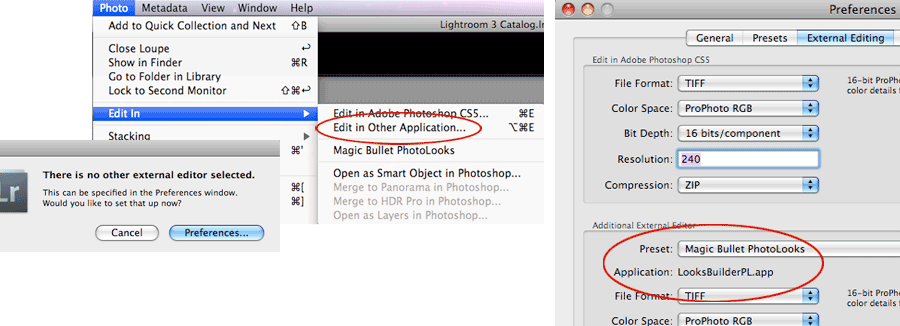
The first time you launch LooksBuilderPL.app, you will need to point Lightroom towards the software. This is easy to do. Choose the menu item Photo> Edit In> Edit in Other Application. A dialog box will open, and the Preset pop-up under Additional External Editor will let you choose Magic Bullet PhotoLooks. Choosing this option means you have chosen the LooksBuilderPL.app.
Three editing options for photos
Once you apply PhotoLooks to your photograph, Lightroom prompts you with a dialog box that shows three editing options.
NOTE: To work with Photoshop .PSD files, you must choose the first option, Edit a Copy with Lightroom Adjustments. If you select Edit a Copy or Edit Original, then Lightroom generates a .PSD file which it cannot read. For any other file format, you can choose any of the three Edit With options.
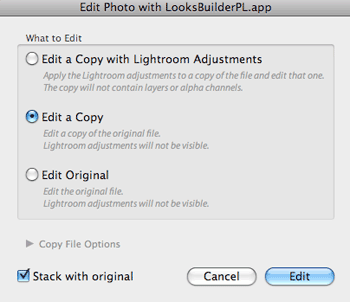
There are three Edit With options:
Interface differences in LooksBuilderPL
Running the external LooksBuilderPL.app has a slightly different behavior than running PhotoLooks internally. Here are the main differences.
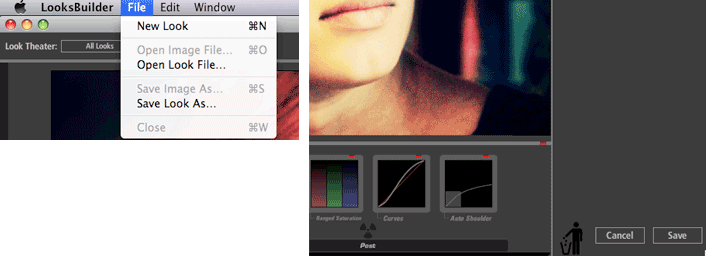
File manu: In the File menu, the commands Open Image File and Save Image As are disabled.
Cancel button: Clicking Cancel will close LooksBuilderPL without saving its edits to your photo. If multiple images were selected in Lightroom, then Cancel will move to the next image in the queue without saving the current image. Unfornunately, Lightroom will not warn you about losing unsaved changes.
Quit command: Choosing Quit will abort the entire queue of photo edits. Lightroom does warn you about aborting the queue but it does not warn you if a current Look is unsaved.
Save button: Clicking Save will save your edits to the photo and quit LooksBuilderPL. You will not be warned if the save overwrites the source file. If multiple files were selected in Lightroom, then Save moves to the next image in the queue instead of quitting. The current Look is preserved when moving through images.